Editorial sample · Researched demo content, not original reporting or hands-on testing. Edit or remove this story from the CMS.
Back up an Android phone—and check what the backup actually covers
A backup switch is a start. The useful check is which account, which data and when the last backup completed.
A phone backup should be something you can explain, not a setting you vaguely remember enabling. This guide follows Google’s Android backup instructions. Menu names may differ with the manufacturer and software version.
1. Confirm the destination
Open Settings, then Google and All services. Under Backup and restore, open Backup. Check which Google Account is selected before you start. A backup associated with an account you cannot access is not a reliable recovery plan.
2. Start a fresh backup
Use Back up now in the backup settings. Google says a Google One backup can take up to 24 hours. Do not interpret tapping the button as proof that everything has finished uploading.
3. Read the coverage
Google notes that not every application can back up or restore all its data and settings. Its guide separately points readers to photo, video and file-backup instructions. Check important apps individually, especially when they have their own export or recovery process.
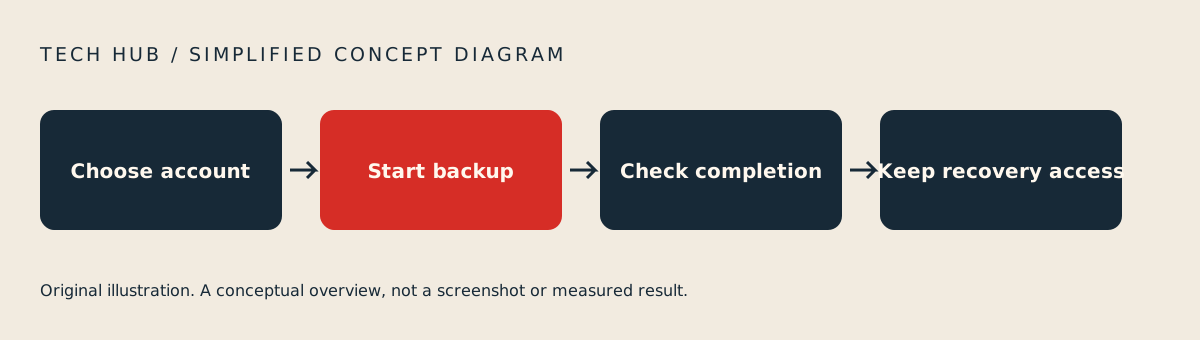
Original Tech Hub conceptual illustration; not a screenshot.
4. Make a small inventory
Our recommended checklist has four lines: contacts, photos, documents and essential apps. For each, note where a recoverable copy lives and which account is needed to reach it. Do not include passwords in a shared checklist.
Check the reported backup status and date, then keep independent copies of irreplaceable files where appropriate. This is a proposed precaution, not a claim that Tech Hub has restored your device.
Before replacing or erasing a phone
Do not erase the old phone merely because a backup setting is on. Confirm completion and understand the restore process first. Google also warns that a backup from a higher Android version cannot be restored to a lower one.
The simplest definition of a useful backup is a copy you can actually recover. A little checking now is easier than discovering a missing category after the original device is gone.
Editorial sample researched on 6 October 2026. Review articles are documentation-based assessments, not hands-on tests. Sources may change after that date. Original Tech Hub illustrations; no third-party news photographs.